
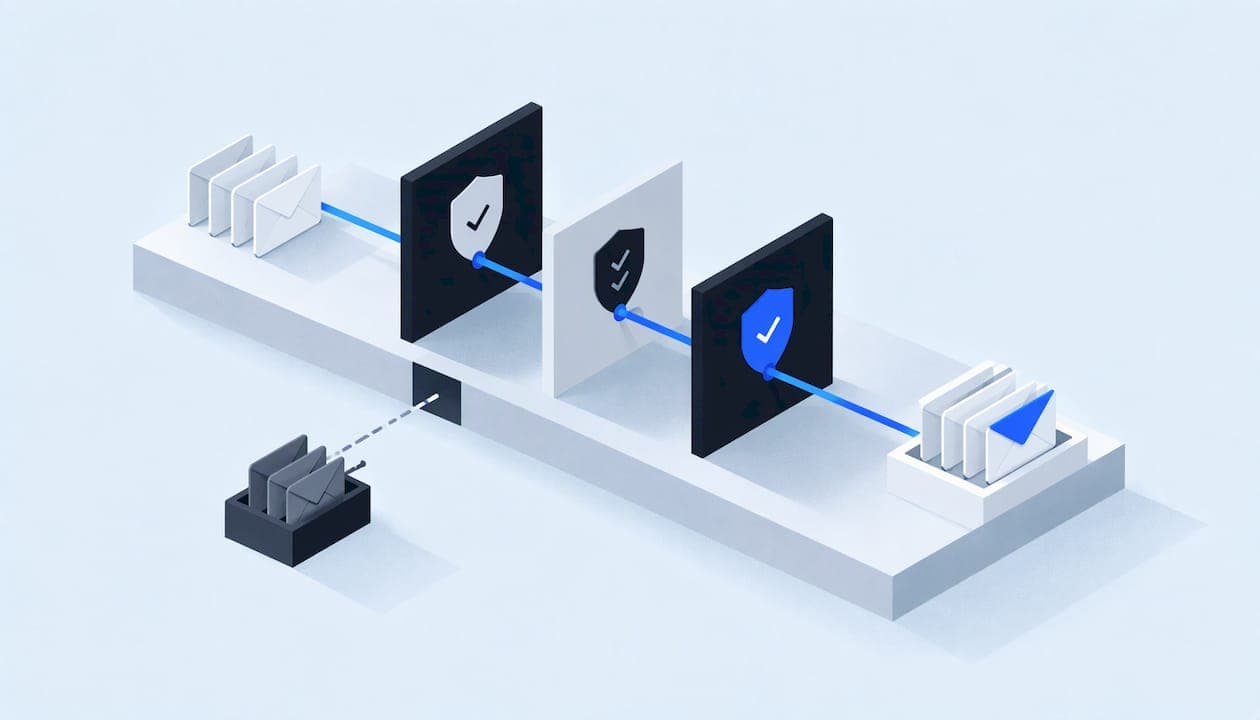
A solid email deliverability setup has three parts. Authenticate your sending domain with SPF, DKIM and DMARC. Send only to people who expect your messages, at a steady pace. Then watch the results in Google Postmaster Tools. For a service business, this decides whether the estimate, appointment confirmation or follow-up you send in response to a lead is seen at all. The steps below are in the order we would do them.
TL;DR
- Set up SPF and DKIM on every domain that sends your email. Add DMARC too, because Gmail's sender guidelines ask for it from bulk senders and it protects your brand either way.
- "Delivered" only means the receiving server accepted the message. Inbox placement is where it landed afterward, and that is what produces replies.
- Keep spam complaints low, send to opted-in contacts, and avoid sudden jumps in volume.
- Check Postmaster Tools after setup. Changes can take up to 7 days to show.
- Measure success in booked jobs, not opens: track lead to sale conversion by email source before and after your changes.
Table of Contents
- Delivered is not the same as in the inbox
- What decides inbox or spam
- Step 1: Inventory everything that sends as your domain
- Step 2: Set up SPF, DKIM and DMARC
- Step 3: Test and monitor after setup
- Step 4: Sending habits that protect your reputation
- Perspective: why we treat deliverability as part of the system
- Measuring whether deliverability changes win jobs
- A one-week checklist
- Where we can help
- FAQ
- Sources
Delivered is not the same as in the inbox
Most email tools report a delivery rate. That figure counts messages the receiving server accepted. Mailgun's explanation of inbox placement defines delivery rate as messages placed in any folder divided by messages sent. Inbox placement rate is messages reaching the primary inbox divided by messages delivered.
The gap matters. An accepted message may end up in the inbox, in spam, in quarantine, or in a Gmail tab such as Promotions or Updates, according to Mailgun's help documentation. Sending platforms usually report only the handoff, not the final folder. Spam Resource points out that a 100% delivery rate can sit alongside poor inbox placement.
For a plumber or roofer, this is concrete. A homeowner submits a quote request, your system sends an instant reply, and your dashboard says "delivered." If that reply went to spam, the homeowner called the next company on the list.

What decides inbox or spam
You do not control the filters. Gmail, Yahoo and Microsoft each use their own algorithms, so the same message can land differently at each (Mailgun Help Center). What you do control are the signals those filters read:
- Authentication. Proof that your domain authorized the server sending your mail.
- Reputation. Spamhaus describes placement as dynamic and dependent on real-time IP and domain reputation, shaped by how recipients interact with your mail.
- Permission and engagement. Do people want the mail, and do they open, reply or complain?
- Sending patterns. Mailbox providers lean mainly on aggregate user behavior and sending patterns, and generally weigh message content less, according to the ActionKit deliverability guide.
That last point changes where your effort goes. Rewriting subject lines will not rescue a domain with no authentication and a pile of complaints. Fix the foundation first.
Step 1: Inventory everything that sends as your domain
Before touching DNS, list every system that sends email using your domain name. For a typical service company that is:
- Your main mailbox provider (Google Workspace or Microsoft 365)
- Your CRM or field service software, for estimates, invoices and reminders
- A marketing or newsletter tool
- Review request and appointment reminder tools
- Website forms and any AI agent or automation that emails leads
Missing a sender is the most common reason authentication breaks after setup. Google's own data suggests where trouble tends to arise: senders typically reach 95% or higher success for DKIM and DMARC when set up correctly, while SPF success tends to be lower, often because of how many messages come from third parties. Your inventory is how you keep third-party senders under control.
A second decision: consider sending marketing and automated mail from a subdomain, such as a name you reserve for notifications, and keeping your main domain for person-to-person email. That separates reputations so a marketing problem does not hurt the mailbox your office manager uses for customer replies.
Step 2: Set up SPF, DKIM and DMARC
Google's email sender guidelines tell you to set up authentication for each sending domain at your domain provider. Here is what each record does and how to handle it.
SPF: who may send
SPF is a DNS record that lists the servers allowed to send for your domain. Each platform on your inventory publishes an "include" value in its setup instructions. You combine them into one record. Keep one SPF record per domain, because publishing two causes failures. Add only the services you actually use, and remove old ones when you change software.
DKIM: proof the message was not altered
DKIM attaches a cryptographic signature to each message. Your sending platform gives you a public key to publish in DNS, and it signs outgoing mail with the matching private key. Do this once per sending platform. Where possible, sign with your own domain rather than the vendor's shared domain.
DMARC: what to do when checks fail
DMARC tells receivers how to treat mail that fails SPF and DKIM, and where to send reports. Google's guidelines ask bulk senders to set up SPF, DKIM and DMARC, and note that the DMARC enforcement policy can be set to none. For direct email, the domain in the visible From address must align with either the SPF domain or the DKIM domain to pass DMARC alignment.
A practical rollout:
- Publish DMARC in monitoring mode (policy of none) with a reporting address you actually read.
- Review reports for a few weeks to find legitimate senders that fail alignment.
- Fix those senders, then tighten the policy gradually.
Do you count as a bulk sender?
Google defines a bulk sender as one that sends about 5,000 messages or more to Gmail accounts in a 24-hour period. Most local service companies fall well below that. The core authentication still applies to everyone, though: Google's compliance dashboard reports SPF and DKIM for all senders and DMARC for bulk senders. Setting up all three is the safe default, and the effort is small.
Step 3: Test and monitor after setup
DNS changes are easy to get slightly wrong: a stray character, a missing include, a duplicate record. After publishing, verify.
- Postmaster Tools. Google's Compliance status dashboard shows SPF, DKIM and DMARC data for mail sent to personal Gmail accounts, plus DNS records, message formatting, encryption and user-reported spam rate (Gmail Help).
- Check MX. Google Admin Toolbox's Check MX tool lets you check current DNS status (Gmail Help).
- Patience. Authentication changes can take up to 7 days to appear in the dashboard, so do not keep editing records after day two.
- Spam rate. Google's guidelines say to keep the spam rate reported in Postmaster Tools below 0.30%.
- A real-world test. Send a message from each system to a Gmail address, a Microsoft address and a Yahoo address you control. Open the full headers and confirm SPF, DKIM and DMARC show a pass. Note which folder each landed in.
Repeat the real-world test whenever you change CRMs, add a tool or switch a form plugin.
Step 4: Sending habits that protect your reputation
Authentication gets you in the door. Behavior keeps you there.
Send to people who asked. Google recommends sending only to recipients who opted in, and considering unsubscribing those who do not open or read your messages (Gmail Help). Spamhaus also advises removing unengaged subscribers and avoiding purchased lists as part of list hygiene. For a contractor, that means no bought homeowner lists. Mail past customers and people who requested quotes. For more on building a warm audience first, see this warm list email strategy.
Keep volume steady. Sudden changes in volume can make mailbox providers suspect spam (ActionKit). If you have a slow winter and then blast your whole customer list for a spring tune-up promotion, ramp up in batches, starting with your most recent and engaged customers.
Clean your data at the source. Typos from phone intake, duplicate contacts and dead addresses produce bounces. Our guide to CRM data cleanup covers setting quality rules before you merge records.
Write like a person. Content weighs less than behavior, but clear, plain messages still earn replies, and replies are a strong engagement signal. Our service email templates for home and field teams give you a starting point. If you ask for reviews by email, follow the steps in our review request automation guide so requests stay compliant.

Make unsubscribing easy. A visible opt-out costs you less than a spam complaint does.
Perspective: why we treat deliverability as part of the system
We see the same pattern in service businesses. The ad spend works, the form fires, the CRM logs a lead, and then the instant reply sits in a spam folder. Nobody notices, because every dashboard says the email was sent.
That is why we do not treat email as a standalone fix. Every build we do is scoped and documented, with written data maps, least-privilege access and explicit consent flows. DNS records for authentication belong in that documentation: which system sends, from which domain, under whose control, and what happens if a change must be rolled back.
We also believe in checkable proof over promises. A correct authentication setup can be verified in message headers and in Postmaster Tools. Lead response should work the same way: you should be able to trace any lead from first touch through reply to booked job, and see where it stalled.
Our approach is to wire the sending domain, the CRM, the calendar and the follow-up automations together under one accountable technical lead, so email, voice and messaging do not each become a separate leak.
Felix
Measuring whether deliverability changes win jobs
Open rates are a weak guide. Inbox placement is hard to see directly, so connect it to outcomes you already track: lead to sale conversion for sales-led businesses, and lead to job conversion rate for field service.
A simple method:
- Define the conversion. Lead to job conversion rate is booked or completed jobs divided by qualified leads in the same period. Choose one definition and keep it fixed.
- Tag the source. Record in your CRM whether each lead's first response was email, text or a call, and which sending address was used.
- Set a baseline. Collect four to six weeks of data before you change DNS or sending practices.
- Change one thing at a time. Authenticate first, then adjust list practices. Otherwise you cannot tell what worked.
- Watch the right signals. Compare reply rate to the instant response, time to first human contact, appointments set and jobs booked. Pair these with the Postmaster Tools spam rate and authentication pass rates.
- Account for seasonality. An HVAC company in July is not comparable to January. Compare against the same weeks last year where you have them, or run a stable period on each side of the change.
If Mailgun's view holds that poor placement is associated with lower opens, clicks and conversions, then fixing it should show up first in reply rate and speed to appointment, and later in booked jobs. Treat the result as your own business data, not a universal benchmark.
A one-week checklist
| Day | Task | Done when |
|---|---|---|
| 1 | List every system that sends as your domain | Each has an owner and a setup page |
| 2 | Publish SPF and DKIM for each sender | Test messages show a pass in the headers |
| 2 | Publish DMARC in monitoring mode | Reports arrive at an address someone reads |
| 3 | Send test messages to Gmail, Microsoft and Yahoo | You know which folder each landed in |
| 4 | Clean the contact list | Bounced and unengaged contacts removed or suppressed |
| 7 | Review Postmaster Tools | Authentication and spam rate data visible, if you send enough volume for it to appear |
Where we can help
If your leads arrive from several places and your replies leave from several systems, deliverability problems usually hide in the gaps. We build lead systems, AI voice and messaging agents, done-for-you automations and custom software for US service businesses. Each build is scoped and documented, with safeguards for client data. See what we offer on our services page, or look at how an engagement runs in our process.

If you want the sending domain, CRM and follow-up wired together once, talk to us at Equinox Strategies.
FAQ
How long does an email deliverability setup take?
The DNS records themselves usually take an hour or two once you know your senders. Allow more time for the inventory and testing. Google notes that authentication changes can take up to 7 days to appear in its Compliance status dashboard, so plan a week before judging results.
Do I need DMARC if I only send a few hundred emails a day?
Google's DMARC requirement is aimed at bulk senders, defined as roughly 5,000 or more messages a day to Gmail. Setting it up anyway is sensible: it gives you reports on who is sending as your domain, and the policy can start at none. The same Google guidance requires SPF and DKIM from all senders.
Why do my emails land in spam even with SPF, DKIM and DMARC passing?
Authentication proves who you are, not that people want your mail. Mailbox providers weigh reputation, complaints, engagement and sending patterns. Check your spam rate in Postmaster Tools, clean your list and keep volume steady.
Where should lead-response emails come from?
Use an address on your own authenticated domain, ideally a real person's or a clear role such as scheduling. Make sure the system that sends it is on your sender inventory, with SPF and DKIM set up for it. Test it by submitting your own web form and reading the headers.
How do I know if better deliverability is bringing more jobs?
Track lead to job conversion rate by response channel for several weeks before and after a change. Look at reply rate, time to appointment and booked jobs, not just opens. Change one variable at a time so the cause is clear.
Sources
- Email sender guidelines - Gmail Help
- Postmaster Tools dashboards - Gmail Help
- Postmaster Tools dashboards - Gmail Help (UK edition)
- What is an Inbox Placement Rate and How is it Calculated? - Mailgun
- Where are my emails actually going? - Mailgun Help Center
- DELIVTERMS: Inbox Placement (Delivery versus Deliverability) - Spam Resource
- Comprehensive Guide to Deliverability and Inbox Placement - ActionKit
- A guide to improving and maintaining email deliverability - Spamhaus
- Crowdfunding Email Strategy: Convert Your Warm List First