
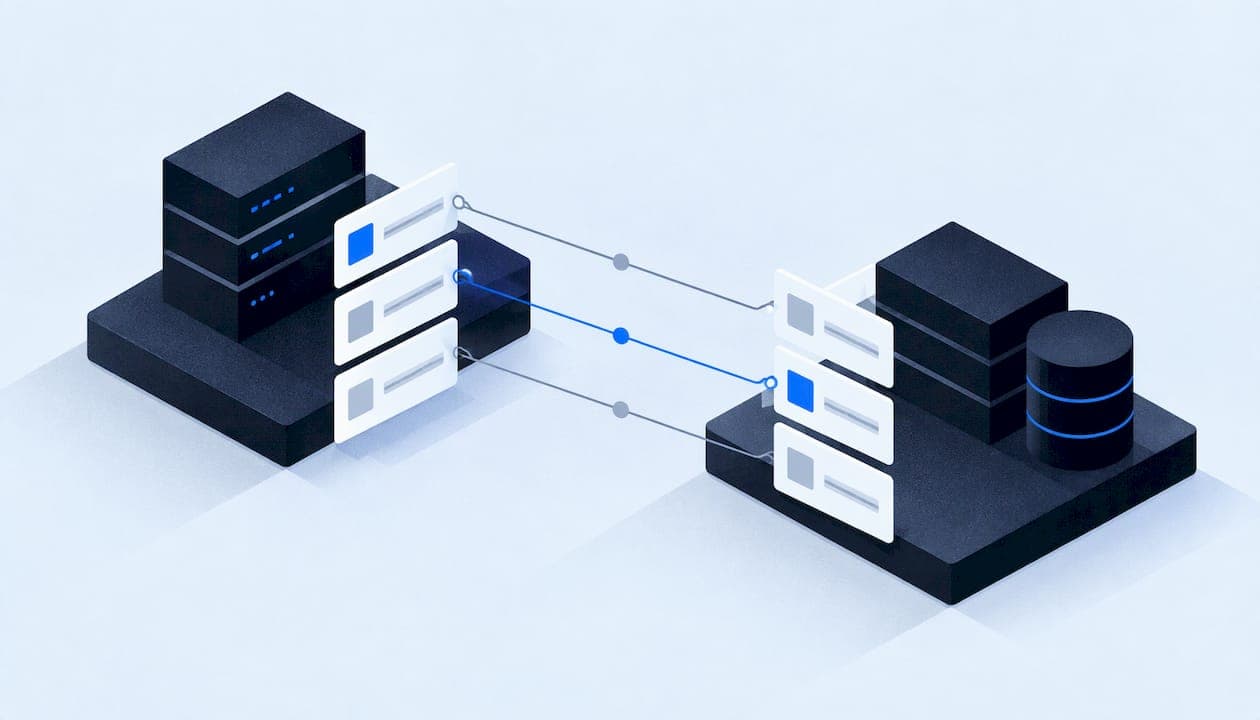
Data mapping for an integration means deciding, field by field, where each piece of information in one system goes in another, and how it changes on the way. Do it on paper before anyone builds anything. A short, written map (source field, target field, rule, owner) prevents most of the duplicate contacts, lost leads and broken reports that show up after two systems are connected.
This guide is for owners and operations managers at service businesses who are connecting a CRM, phone system, scheduling tool, accounting package or lead source. You will get the steps, a template you can copy, the checks to run before and after launch, and the habits that keep a map accurate as your tools change.
TL;DR
- Data mapping connects a field in one system to a field in another and is often the first step in end-to-end integration.
- Write the map as a table: source field, target field, data type, transformation rule, required or not, and who owns it.
- Match exact names automatically if you like, but review every field by hand where your naming differs.
- Test with a small batch of real records before go-live, and check row counts and logs on the first run.
- Treat the map as a living document: version it, review changes and update it whenever a system changes.
Table of Contents
- What data mapping does in an integration
- Before you map: know the process and the clean-up work
- The steps to map data between two systems
- A data mapping template you can copy
- Handling sensitive fields and consent
- Test the mapping before and after launch
- Keep the map accurate as systems change
- When to use a mapping tool or automate
- Our perspective
- Need the map built and the integration running?
- FAQ
- Sources
What data mapping does in an integration
Every business system describes the same customer a little differently. Your call platform may store one "Name" field, your CRM may split it into first and last, and your job-management software may require a service address in a format neither of the others uses. A data map is the written agreement about how those descriptions line up.
At its simplest, mapping links attributes and values between databases so they can communicate. Done well, it standardizes data, reduces the potential for errors and bridges differences between applications and formats. Done badly, or not at all, the integration still "works" in the sense that data moves, but the data that arrives is wrong, partial or duplicated.
For a service business, the cost shows up in plain ways:
- A web form lead arrives in the CRM without a phone number because the form's "Mobile" field was never mapped.
- A caller is logged twice because the phone system sends "(555) 010-0199" and the CRM stores "5550100199".
- A job is booked with the wrong status because one tool calls it "Scheduled" and another calls it "Confirmed".
- Follow-up texts go to someone who opted out because the consent field never crossed over.
None of these is a software bug in the usual sense. Each is a mapping decision nobody made on purpose.
Before you map: know the process and the clean-up work
A map only describes how data moves. It cannot fix a process that is unclear. If two people in your office handle a new inquiry differently, the integration will freeze that confusion in place. Start by drawing the workflow you want, as we describe in our guide to process mapping for automation, then map the data that supports each step.
Also look at the quality of what you are about to connect. Merging two messy lists produces a bigger messy list. Our piece on CRM data cleanup and quality rules covers the rules worth setting before you merge, and our master data management guide for small businesses explains how to decide which system holds the "official" version of a customer record.
That last decision matters more than it sounds. Combining sources into a trusted database is what creates a reliable source of truth. Pick the system of record for each kind of data (contact details, job status, invoices, consent) before you map anything. Otherwise two systems will overwrite each other on every sync.

The steps to map data between two systems
The process generally runs through identifying sources and targets, defining requirements, setting mapping rules, transforming, validating and maintaining the map as systems evolve. Here is that sequence applied to a typical small-business integration.
1. List the systems and the direction of flow
Name each source and each target. For every pair, write down which way data moves: one-way (web form to CRM) or two-way (CRM to scheduling tool and back). Two-way flows need a rule for conflicts. If a customer's phone number changes in both places on the same day, which one wins?
2. Inventory the fields on both sides
Export a sample of 20 to 50 real records from each system and list every field, with its type: text, number, date, yes/no, or a pick-list. Looking at real records, not the settings screen, reveals the surprises: free-text fields full of notes, blank values, and dates stored three different ways. A workflow for mapping data typically includes analyzing structures before mapping fields.
3. Decide what needs to move
Not every field earns a place in the integration. Move what a downstream step needs: a technician needs the address and the problem description; a billing step needs the customer ID and job total. Leaving out fields nobody uses keeps the map short and the sync fast.
4. Match fields and write the rules
This is the core of the work. Map each source field to a target field, then write the transformation rule beside it. Some tools offer automatic mapping that matches exact field names, with manual mapping available for custom naming conventions. Automatic matching is a head start, not a finish. A field named "Status" in two systems may hold completely different values.
5. Define the transformations
Transformations are the changes applied in transit. Common ones in service businesses:
- Formatting: phone numbers to one standard format, dates to one standard, state names to two-letter codes.
- Splitting and joining: full name into first and last, or street, city and ZIP into one address line.
- Value translation: pick-list values from one tool converted to another's values using a lookup table.
- Defaults: what to write when the source field is empty.
- Filtering: which records to skip, such as internal test contacts.
Microsoft's guidance for a complex migration into Dataverse describes the same moves: trimming strings, converting text-based option-set values to integers with mapping tables, and using scripts to join or merge tables. The tools differ, but the thinking is the same.
6. Test with real records
Run a small batch, compare the result against the source, and fix the rule that caused each difference. The next section covers what to check.
7. Document and hand over
Save the finished map where the whole team can find it, with the date, the version and the person responsible. If the person who built the integration leaves, the map is what keeps it maintainable.
A data mapping template you can copy
A useful template is a table with one row per field. The minimum columns are below. Add more if your integration needs them, but resist adding columns nobody will fill in.
| Source system | Source field | Source type | Target system | Target field | Target type | Transformation rule | Required? | Default if empty | Owner |
|---|---|---|---|---|---|---|---|---|---|
| Web form | Full Name | Text | CRM | First Name, Last Name | Text | Split at first space; trim extra spaces | Yes | Reject and alert | Office manager |
| Phone system | Caller Number | Text | CRM | Mobile Phone | Text | Strip symbols; store 10 digits | Yes | Leave blank, flag record | Office manager |
| Web form | Service Needed | Pick-list | Scheduling tool | Job Type | Pick-list | Lookup table: "AC not cooling" to "HVAC Repair" | Yes | "General Inquiry" | Dispatcher |
| CRM | Appointment Date | Date | Scheduling tool | Start Time | Date-time | Convert to local time zone | Yes | Reject and alert | Dispatcher |
| Web form | Texting Consent | Yes/No | CRM | SMS Opt-In | Yes/No | Copy as is; never default to Yes | Yes | No | Owner |
| Scheduling tool | Job Status | Pick-list | CRM | Deal Stage | Pick-list | Lookup table, one row per status | Yes | Do not update | Owner |
A few notes on using it:
- Keep a second tab for lookup tables. Every pick-list translation gets its own table, so a new status is a one-line change.
- Make the default column explicit. "Leave blank" and "reject the record" are different decisions with different consequences.
- Name an owner for every row. When a field breaks, someone knows whose call it is.
- Add a version and date at the top. The next section explains why.
The same principle applies to the connections themselves. Phone and messaging platforms usually publish their own pages on how field-to-field connections work, and a set of integration field mapping guides is a good way to see how a typical business tool exposes its fields before you build your own map.
Handling sensitive fields and consent
Mapping is also where privacy decisions become concrete. Proper mapping supports compliance with rules such as HIPAA or state privacy laws, because it lets teams label and protect sensitive personal identifiers through consistent field-level handling. In practice, add two columns to your template for any field that holds personal information: a sensitivity flag and a note on who may see it.
For a service business, the fields that deserve that flag are usually phone numbers, email addresses, home addresses, payment details, insurance claim numbers and anything about a person's health or property damage. Consent fields deserve special care. Map them explicitly, carry the date and source of the consent where your systems allow, and never let an empty value default to "yes". Which laws apply to you depends on your state and your industry, so confirm the requirements with your attorney or compliance adviser rather than relying on a template.
Test the mapping before and after launch
Catching a mismatch before the first live run is far cheaper than diagnosing failed rows afterward. Salesforce's training material makes this point about type mismatches, and it holds for any integration.
Pre-launch checks
Before the first run, confirm that source and target connections are configured, required fields are mapped, transformation expressions are valid and no objects are left disconnected. Then add the checks specific to your business:
- Edge cases. Include records with a missing phone number, a name with an apostrophe, a two-line address, a duplicate email and a contact who opted out.
- Round trip. For two-way flows, change a value in each system and confirm the change lands correctly in the other without looping.
- Duplicates. Send the same record twice and confirm you get one contact, not two.
For larger moves, staging helps. Microsoft's guidance notes that staging data in a separate database supports auditing, analysis and integrity checks before the final migration.
First live run
On the first run with real data, check row counts and review the session log. Count what left the source and what arrived at the target, and explain every difference. Then open ten records at random in the target and compare them with the source by eye.
A structured sign-off helps here. Our user acceptance testing checklist gives you a paste-ready format for the people who will use the system to confirm it behaves as expected. If you are also bringing in outside data to fill gaps, our 500-row match test for lead data enrichment shows a small-sample method for judging quality before you commit.
Keep the map accurate as systems change
A map that was right in March can be wrong by June. A vendor renames a field, someone adds a pick-list value, or a new privacy rule changes what you may store. Reliability comes from monitoring mappings, documenting them, validating them regularly and updating them as systems, business rules or regulations evolve.
Three habits do most of the work:
- Version it. One approach is to treat mappings like code, with versioning, reviews and testing. You do not need a developer's toolkit for that. A dated file with a change log and a second person reviewing edits gets you most of the benefit.
- Control changes. Adding a field in one tool should trigger a question: does the map need a new row? A light change control process stops undocumented edits from breaking a live integration.
- Stay flexible. Technology, processes and privacy regulations all change, so build change management into your templates rather than treating the map as finished.
Also set up an alert for failed syncs. A silent failure is the worst kind: leads stop arriving and nobody notices until a customer complains.
When to use a mapping tool or automate
A spreadsheet is enough for a handful of fields between two systems. Look for tooling when you have many systems, frequent changes, large volumes or strict audit needs. Some platforms ship integration templates with predefined entities and field mappings to speed up setup and reduce burden and cost, which is a real advantage when your systems match what the template expects.
As volume and complexity grow, so does the case for intelligent, automated approaches. Even then, automation does not replace the decisions in your map. A tool can suggest that "Status" matches "Status"; it cannot know that your dispatcher means something different by each.
The standard connector is not always enough. If your workflow has unusual rules, such as insurance-driven job stages in restoration work or multi-visit roofing estimates, custom logic is sometimes cleaner than bending a generic template. Pipeline stages are a good example, and our guide to pipeline stage design for service businesses shows how to define stages before you map them.
Our perspective
We have seen the same pattern in service businesses again and again: the software is rarely the problem. The problem is that nobody wrote down what each field means, who owns it and what happens when it is empty.
That is why we scope and document every build before we write a line of automation. Our approach is security-led: least-privilege access so each connection can touch only what it needs, a written data map so you can see exactly where customer information goes, explicit consent flows so a follow-up text only goes to someone who agreed to it, and a rollback plan in case something misbehaves after launch.
We also believe one accountable technical lead should own the whole integration. When a phone agent, a CRM and a scheduling tool are built by three different vendors, the gaps between them are nobody's job. A single owner for the map, the build and the testing closes those gaps, and it leaves you with documentation you can check yourself.
If you take one thing from this guide, make it the template. A one-page map written before the build is the cheapest insurance an integration project has.
Felix
Need the map built and the integration running?
If you would rather have this done than do it yourself, that is what we do. We build lead response and operations systems for US service businesses: AI voice and messaging agents that answer and qualify inquiries, automated follow-up, and a unified record of customers, calendars and reporting underneath. Every project starts with a scoped, written data map. See how our automation and lead systems work or go straight to our process overview.

When standard platforms cannot match how your business runs, we also build custom software from your brief. Tell us which systems you need connected and we will scope it with you at Equinox Strategies.
FAQ
What is the difference between data mapping and data transformation?
Mapping decides which source field connects to which target field. Transformation is what happens to the value in between, such as reformatting a phone number or translating a status. You document both in the same row of your template, because a mapping without its rule is only half a decision.
How many fields should a first integration map?
Only the fields a downstream step actually uses. For a lead-to-CRM flow that is often a dozen or so: name, phone, email, address, service requested, source, consent and a timestamp. Start small, test it, then add fields as real needs appear.
Can I rely on automatic field matching?
Use it as a starting point. Automatic matching works on exact names, so it will miss fields that are named differently and can pair fields that share a name but mean different things. Review every automatic match by hand, especially pick-lists and status fields.
Who should own the data map in a small business?
One named person, usually the operations manager or office manager, with the owner approving changes that affect customers or consent. Each row can have its own field owner, but one person should hold the whole document, keep its version history and run the review whenever a system changes.
Sources
- Data Mapping: The Essential Guide, Tableau
- What is Data Mapping?, Informatica
- Data Mapping 101, Twilio
- How to Do Data Mapping: Steps and Best Practices, Ketch
- What is Data Mapping? The Ultimate Guide, Amplitude
- Suggested workflow for a complex data migration, Microsoft Learn
- Configure sources, resolve types, and map targets, Salesforce Trailhead
- Create and Manage Cloud Data Mappings, Salesforce Trailhead
- Data Mapping Steps: A Practical 7-Step Process, Data Workers
- A Practical Guide on How to Do Data Mapping, Captain Compliance
- Integrate data into Microsoft Dataverse, Microsoft Learn
- Integrations, Talkroute Support